Tutorial 01
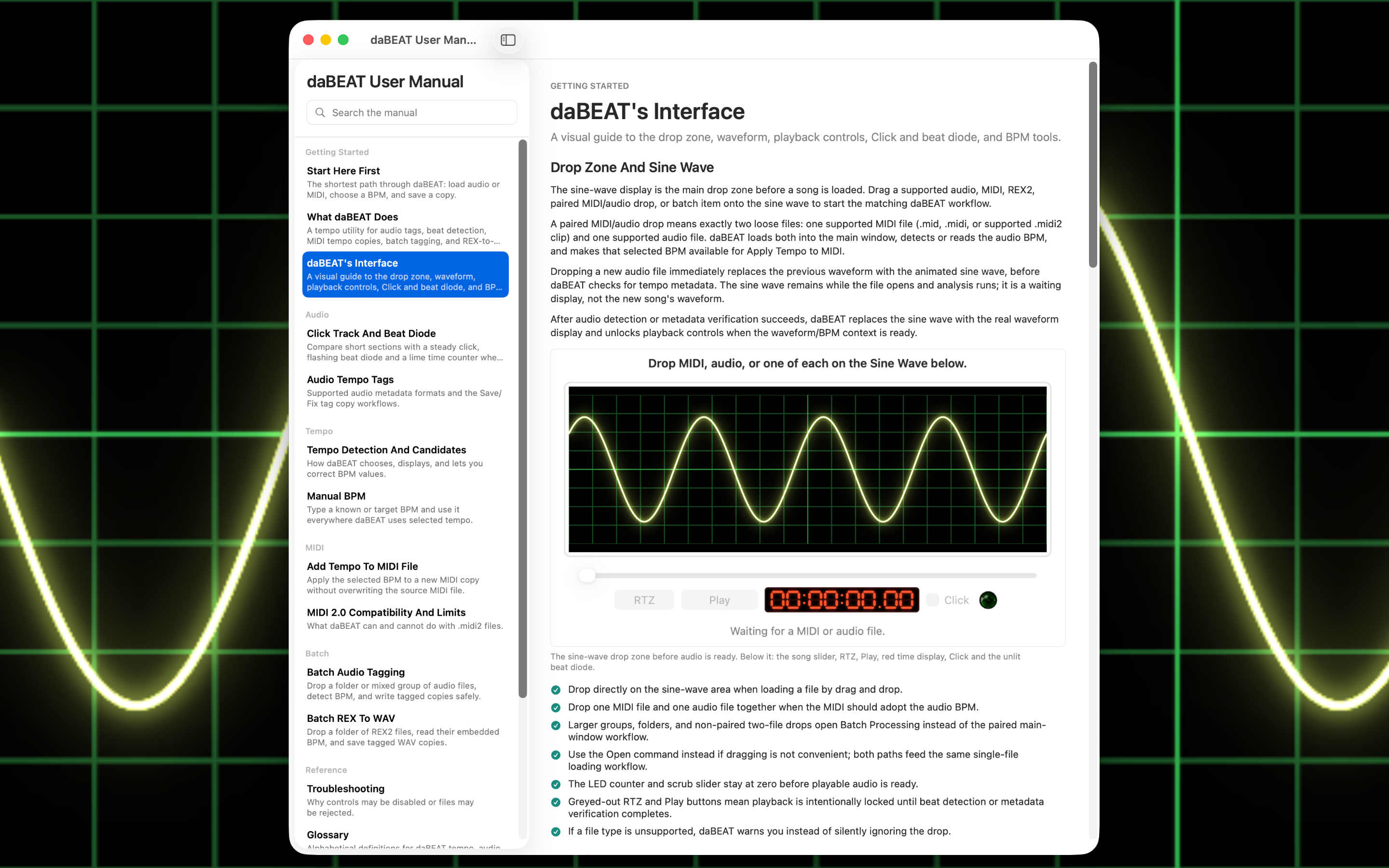
daBEAT User Manual Walk-Through
Get oriented with the built-in manual, feature explanations, and help for everyday workflows.
Watch on YouTube →
daBEAT 1.0 · Help & video guides
Learn to check a tempo, prepare MIDI copies, and give your audio library useful BPM tags.
Available Soon on the Apple App Store
Preparing a library? Drop a folder or multiple supported files to open Batch Processing. Review the proposed actions and file selections before processing.
Watch, learn, make music
Play a tutorial here or follow its direct YouTube link. Embedded videos use YouTube’s privacy-enhanced domain. Watching videos requires an internet connection; daBEAT’s core file processing runs locally on your Mac.
Tutorial 01
Get oriented with the built-in manual, feature explanations, and help for everyday workflows.
Watch on YouTube →Tutorial 02
Meet daBEAT and set up the click sound and volume for checking a recording’s pulse.
Watch on YouTube →Tutorial 03
Load audio, review the BPM result, and use listening and tempo choices to decide what fits.
Watch on YouTube →Tutorial 04
Explore local tempo evidence across a longer recording and listen to the sections that need a closer check.
Watch on YouTube →Tutorial 05
Turn a supported REX2 loop into a WAV copy with its embedded loop tempo stored as a BPM tag.
Watch on YouTube →Tutorial 06
See how supported MIDI 2.0 clips fit into daBEAT’s file-based tempo workflow.
Watch on YouTube →Tutorial 07
Use a selected audio BPM to save a separate MIDI copy with the chosen tempo.
Watch on YouTube →Tutorial 08
Scan a folder, review tagging and correction plans, and choose which audio copies to write.
Watch on YouTube →Tutorial 09
Prepare a collection of REX2 loops as BPM-tagged WAV copies in one batch.
Watch on YouTube →Try an alternate candidate, half-time or double-time, or a related-rhythm correction. Listen with the click track and enter Manual BPM when you know the correct value. Syncopation, sparse audio, and changing tempo can make detection ambiguous.
The click uses your selected BPM as a fixed-tempo listening reference. It does not follow local timeline changes, and it is never mixed into saved audio. The flashing beat indicator follows that click. Listen to judge whether the pulse fits the music.
Apply Tempo sets supported sequence-tempo events in a new MIDI copy to one selected BPM, flattening existing tempo changes. It does not transcribe audio, align individual notes, or create a tempo map from the recording. In SMPTE-timed MIDI files, it changes tempo metadata rather than absolute playback timing.
Load a supported, editable MIDI file and choose a BPM. Some MIDI 2.0 clips are read-only because of their timing or data structures. Hover over the MIDI filename or Apply Tempo button for the explanation. Manual BPM does not bypass that compatibility boundary.
No. Tempo tagging writes metadata into a separate output copy. It does not time-stretch the recording or change playback speed. The click also stays out of exported files. Save Tempo Tag is offered for files without usable tags; Fix The Tempo Tag is offered through the mismatch workflow.
A plausible existing BPM tag could not be verified against the audio. That file is skipped, rather than confirmed as correct. Review the batch results and inspect uncertain files individually before relying on their tags.
The tempo timeline is read-only evidence for checking local estimates. It does not automatically change your selected BPM or export an editable variable tempo map. An empty timeline means changes were not confirmed.
Inside daBEAT, choose Help → daBEAT User Manual. Search by feature or file format, or start with Start Here First. The built-in manual is available offline.
Email contact@newtoysoftware.com with your daBEAT version, macOS version, Mac model or processor, input file type, and a short description of what happened. Include the exact error message when available.